
Mobile app
We’ve listened to our members’ feedback and developed a great new app with the same easy claims process and a range of new functions.
Claiming is still easy – take a photo of your invoice or receipt with the app and click submit! We’ll process your claim within two business days.
What's new
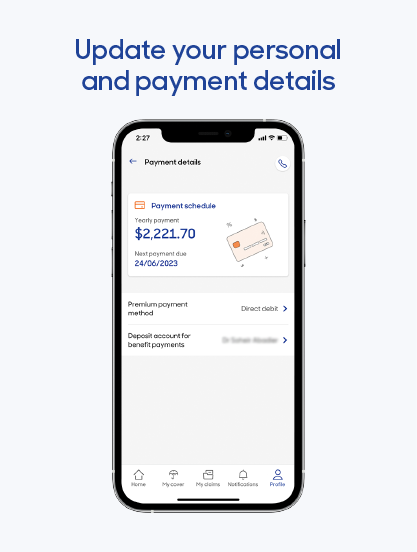
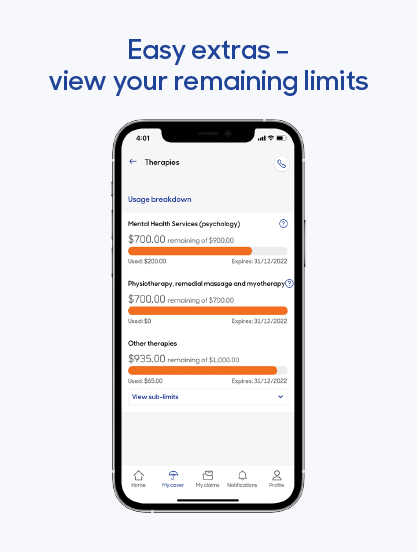
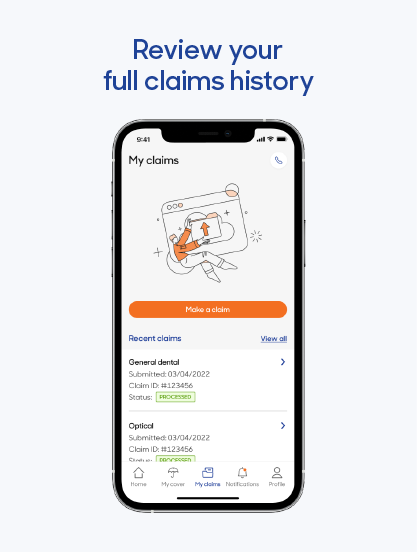
You can see all your policy details and inclusions, as well as any claims you’ve made in the last three years.
The new app uses multi-factor authentication to keep your data secure.
Using an authentication app
Receive one-time verification codes through an authentication app on your mobile device to securely complete sign-in authentication requests.
An authentication app is our recommended option because it offers stronger protection for your account, works even when SMS reception is unavailable, and can be more reliable when travelling or experiencing mobile network issues.
SMS verification will remain available if you prefer.
Get started
Go to the App Store or Google Play and search ‘Doctors Health Fund’. Install the app and you’re ready to go.
Simply use your Online Member Services email and password to log in. If you’re not already registered, you can do so on the app.
After your first log in, you’ll be able to use face ID or touch ID if your device allows.
Don’t forget to delete the old app
This is a new app, not an upgrade. You should delete our old app as it has now been shut down.
Help within the app
You can find all our support functions (app feedback, contact us, terms of use and help) on the ‘Profile’ page. You can also log out of the app from the 'Profile' page.
More information
Call our Member Services Team on 1800 226 126from 8:30am to 6:00pm NSW time Monday to Friday excluding NSW public holidays.
Please also read our mobile app terms of use.
Frequently asked questions
What devices can I use?
Our app can be used on most mobile phones. For Apple iPhones you'll need iOS 13 or above. For Android devices you'll need Android 6 or above.
How do I log in?
You use your Online Member Services email and password to log in. If you’re not already registered, you can do so in the app.
We use multi-factor authentication for your security – a code will be sent to your mobile phone number.
After your first log in, you’ll be able to use face ID or touch ID if your device allows.
I’ve forgotten my password – what do I do now?
Select the ‘Forgot password?’ link on the log in page. You will need to enter the email address that is registered for Online Member Services and an email will be sent with a link to reset your password. Please note that this will also reset your password for Online Member Services.
I didn’t receive the security code for multi-factor authentication – how can I check you have the right mobile number for me?
The authentication code is sent to the mobile number you have provided to us. Call us if you need to change your phone number. After you have logged in, you will also be able to update your phone number by selecting your name under ‘Who is covered’ on the ‘Profile’ page. You cannot change details for your spouse, they must do that themselves.
What happens for multi-factor authentication if we only have one phone number listed on a couples or family policy?
The authentication code is sent to the phone number listed on the policy. The member who receives the authentication code would need to tell the code to their spouse. Alternatively, update your personal details via Online Member Services, the app or by calling us – you can have a different phone number and email for you and your spouse.
The app says ‘Sorry, something went wrong!’ – what should I do?
First check your mobile data or wifi connection and then try to log in again. If your internet connection is okay but you still can’t log in, call us.
How do I submit a claim using the app?
Submitting a claim is easy if you have your healthcare provider’s invoice or receipt. Use the app to take a photo of the invoice or receipt or upload a pdf or existing photo. Photos or files must be clear and show:
- healthcare provider's letterhead which includes their name, ABN, address and contact details
- invoice date
- patient’s full name
- a description or recognised item number for each treatment
- amount charged for each treatment
- date of each treatment
- amount you paid.
Before submitting your claim, check you have provided all the necessary details, otherwise the processing of your claim may be delayed.
Keep your original receipts for 6 months.
How do I save photos taken with the app?
To save photos in your photo library in a folder named ‘Doctors Health Fund’ you need to ‘Agree’ to saving photos when you first take a photo with your phone. If you ‘Disagree’ photos will not be saved to your photo library. Your preference is saved for all future claims.
If you want to reset your preference, you'll need to delete the app from your phone and reinstall it. Then go to My claims > Make a claim > Next > Upload > Take photo > Agree. You don’t need to submit the claim, the app will save your preference for the next time you make a claim.
iPhone users: there is one more step, when prompted you need to ‘Allow access to all photos’. If you choose ‘Select photos …’ it will not save photos to your photo library as there are not enough permissions.
(iPhone users only) I agreed to save photos but I can’t see them in my photo library – why?
If you chose to only allow access to ‘Select photos’ the app does not have enough permissions to save photos to your photo library. Go to your app preferences in ‘Settings’ and for photo access select ‘All photos’.
Why am I receiving an error when trying to upload documents for a claim?
You can’t upload documents if:
- the combined size of your documents exceeds our limit of 20MB – resize some of your documents and try again
- your file is in the wrong format – it needs to be a doc, docx, gif, jpg/jpeg, pdf or png
- it takes longer than two minutes to upload your files – check the speed of your connection.
Why can’t I see the claim I just made in my claims history?
A claim does not appear in your claims history immediately after you submit it. A claim will first appear in your claims history as ‘Pending’ when we start to assess it. When our assessment is complete, the status will change to ‘Processed’ (usually within two business days). If you’re unable to view your claim after two business days, call us.
What does the claims status ‘Processed’ mean?
‘Processed’ means that we have assessed your claim in line with your policy coverage. This may result in us paying:
- a full benefit
- part benefit if a limit has been met
- nothing if the limit was previously met
- nothing because the claim does not meet one of our claiming terms and conditions (if so, we’ll email you an explanation).
If you are to be paid a benefit, it should be in your bank account the next business day after it is processed.
Can I make a claim on behalf of another person on the policy?
Yes, you can claim on behalf of another person on your policy. Provide the documents required for a claim as usual – we’ll be able to see the patient’s name and process the claim accordingly.
How can I delete a claim I’ve submitted?
You can’t delete a claim from the app once it has been submitted. If you need to withdraw a claim before it is processed, please call us.
If I delete the old app will I still be able to see my claims in the new app?
Yes, the new app shows all your claims from the last three years, regardless of how you submitted them.
Read our Privacy Policy.
What personal details can I change in the app?
You can change your address, phone number, email address and payment details (your bank account for benefit payments, and payment type and frequency for your premium payments).
Why can’t I see my direct debit details in the app?
You can change your payment details in the app but as a security feature we don’t display your current credit card or bank details.
Can I stop other people on my policy from seeing my claims?
If you would like your information kept private, you need to call us on 1800 226 126. Claims made via the app can usually be seen by all people covered by the policy unless a person has requested their information be kept private.
How do I log out of the app?
Go to the 'Profile' page and scroll to the bottom.
How do I tell the difference between the old app and the new app?
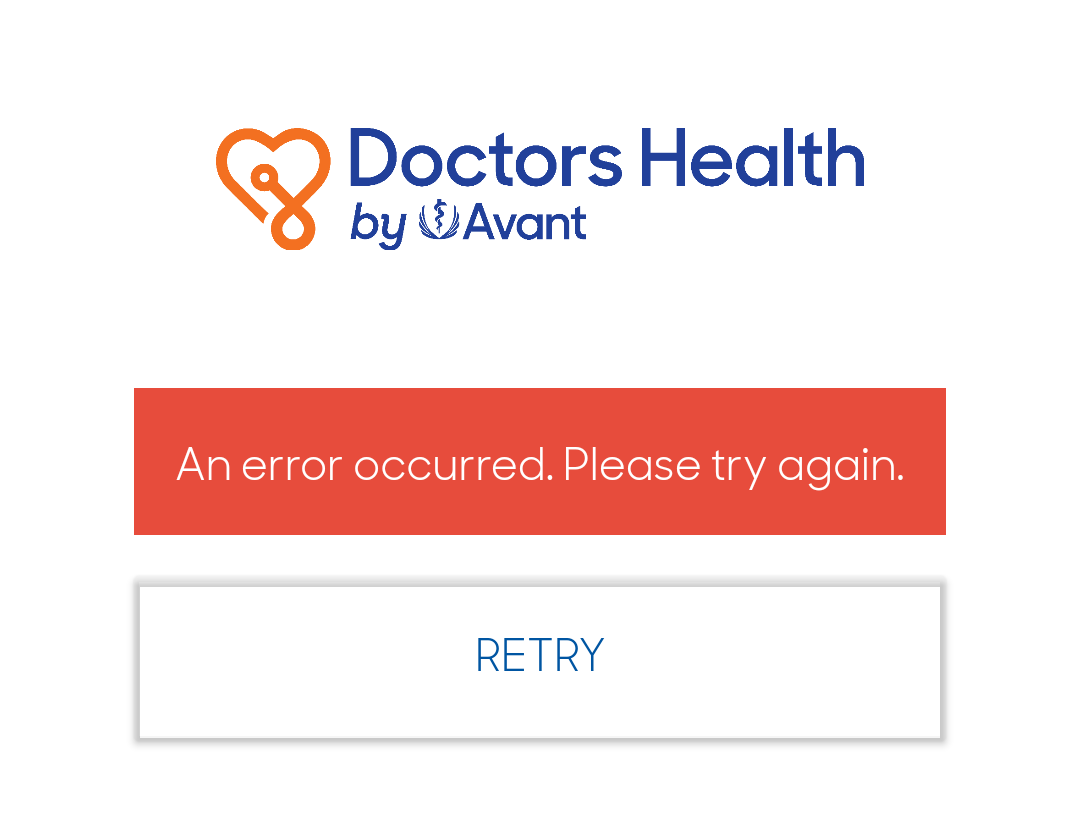
Only the new app is available in your app store so search for ‘Doctors Health Fund’ and then ‘Get’ or ‘Install’ (depending on your device) or ‘Open’ if you have already installed it. Our old app has now been shut down so if you see this error message you’re trying to log into the old app. Delete it and install the new app.
What should I do with the old app?
You should delete our old app. It was shut down on 16 December 2022.
If I delete the old app will I still be able to see my claims in the new app?
Yes, the new app shows all your claims from the last three years, regardless of how you submitted them.